CSE Departmental GPU Environment (MAGIC)
The CSE Machine-Learning Artificial-Intelligence GPU Instructional Cluster (or MAGIC) can be accessed via a web browser. It runs JupyterHub which allows for easy interaction and coding.
Accessing the JupyterHub Environment
You can access the interface via web browser at:
http://magic01.cse.lehigh.edu
Note
If you are not connected to a Lehigh Network or are connecting from outside of campus, you will need to be connected to Lehigh's VPN prior to being able to access this URL.
Your username will be your Lehigh ID.
If you have not received a password for the CSE MAGIC GPU Environment, that means your password is initially unset prior to first login.
Important
If you have not received a password for the CSE MAGIC GPU Environment, this means the password entered during your first login will be set for future logins using your account.
If you have received a password for the CSE MAGIC GPU Environment, use that to login.
Changing Your Password
You can change your CSE MAGIC GPU Environment / JupyterHub password at any time using the following link:
http://magic01.cse.lehigh.edu/hub/auth/change-password
Configuration Details and Available Applications and Development Libraries
This server is running the RAPIDS Framework including Conda, Ubuntu, Python, and CUDA. Various other common libraries such as NumPy, Matplotlib, SciPy, Keras, Tensorflow, PyTorch, and SciKit-Learn are also available.
General Use, Creating a Python Notebook
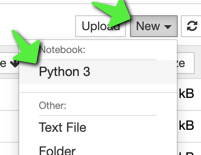
Once logged into the cluster, creating a new Jupyter Notebook is handled via the "New" menu at the top-right corner, and then by selecting "Python 3":
Resources
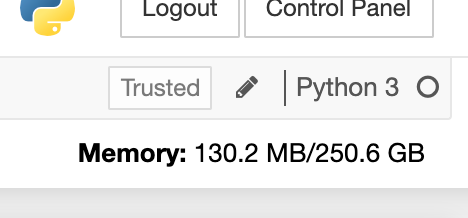
This environment has various resources available for computational use. Among others, RAM, CPU, and GPU are finite resources that your code will utilize. You will see available RAM at the top-right corner while editing a Jupyter Notebook:
Available CPU can be monitored via opening a Terminal session:

And typing top at the terminal prompt:
(Press q to quit top)
Available GPU resources can be monitored by typing:
watch -n 0.5 nvidia-smi
(Press Ctrl-C to exit this view)
As you can see in the screenshot above, there are four GPUs installed in this particular server.
Targeting a Specific GPU Card
When running with default settings, most tasks will target the first GPU (ID 0). Most libraries and tasks allow targeting specific GPU cards. For example, when using numba via JupyterHub, the following command forces the task to utilize the first GPU:
cuda.select_device(0)
The specific method of utilizing a particular card may vary for your task. Another common method for specifying a GPU card to utilize is via the following environment variable:
CUDA_VISIBLE_DEVICES=0,1
The above an be run via the Terminal as follows:
export CUDA_VISIBLE_DEVICES=0,1
It can also be set before a command that is being run:
CUDA_VISIBLE_DEVICES=0,1 yourcommand
When launching longer-running tasks, monitoring current GPU utilization and assigning the task to an available GPU is preferred.
Accessing MAGIC via VS Code
Microsoft has released a JupyterHub extension for Visual Studio Code that works well with the CSE MAGIC Environment. Check out the dedicated documentation page for using this extension with VS Code by clicking here.
Accessing MAGIC via SSH
The MAGIC environment disables password-based SSH authentication by-default.
To enable SSH connections for your account, you will first need the Public SSH Key from your SSH key pair. First, check if you have an exisitng SSH key pair on the computer you are using to access the MAGIC environment.
For assistance checking whether you have a suitable existing SSH key pair, please visit the Check for Existing SSH Keys.
If you do not have an existing SSH key pair, or if you would like to create a new key pair for use with the MAGIC environment, visit SSH Key Generation.
Next, log into the MAGIC environment and open a new Terminal window.
important
Perform the following steps within the MAGIC environment!
Create an SSH folder in your home folder:
mkdir -p ~/.ssh
Change the permissions of this new SSH folder:
chmod 700 ~/.ssh
Add the contents of your SSH Public Key to the authorized_keys file:
vim ~/.ssh/authorized_keys
Confirm the permissions of the authorized_keys file:
chmod 600 ~/.ssh/authorized_keys
important
Perform the following step from your local computer!
Attempt connection from your computer to the MAGIC environment:
ssh jupyter-lid123@magic01.cse.lehigh.edu
Note
Prepend your usual username with jupyter-
It should allow SSH connection without password (as it utilizes the SSH key pair instead).
Password Assistance
Password, software, or other assistance with the CSE MAGIC environment can be obtained via emailing help@cse.lehigh.edu